Antenna Rotator
Controller

PathFinder is a family of antenna rotator hardware interfaces and companion applications, built around the open GS232 protocol. Current hardware supports DX rotor clocks and Yaesu G-5x00 rotors — with multi-point calibration, dedicated Windows and Android apps, and more hardware models in development.
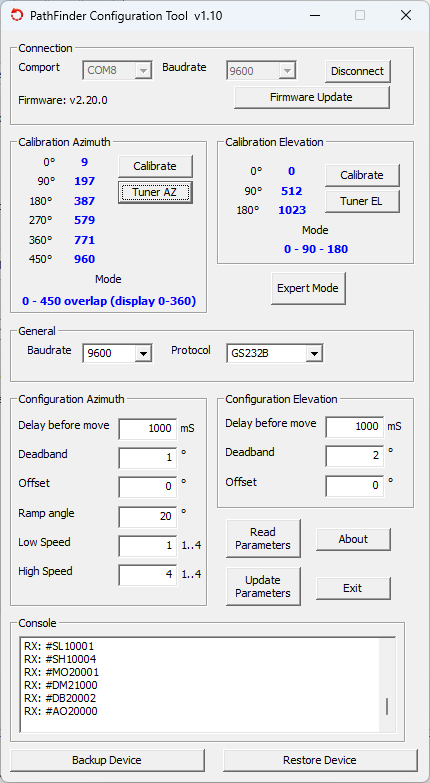
PathFinder Configuration Tool
PathFinder
GS232
A & B protocol support
AZ+EL
Azimuth and elevation simultaneously
450°
Extended azimuth range
v2.0.1
Current firmware version
🛒 Available Now
PathFinder hardware — handbuilt in the Netherlands
PathFinder Dual €80 / €85 (without / with 6-pin cable)  ·  PathFinder SDX €70  ·  EU shipping  ·  Small batches, limited stock
🛒 Order Now View Models →
🧭

The PathFinder Family

PathFinder is a product family for antenna rotator control. The hardware interfaces bridge the analogue position signals of your rotor clock to your Windows PC via USB — reading the potentiometer position, calculating the exact angle using multi-point calibration, and sending movement commands (CW, CCW, UP, DOWN) back. Via the GS232 protocol, PathFinder communicates with any logging, tracking or satellite software.

The family currently includes hardware models for DX rotor clocks and Yaesu G-5x00 rotors, paired with three companion apps: PathFinder Tool (configuration & calibration), PathFinder Client (Windows operation) and PathFinder Android Client (mobile). New hardware models are in development.

DX(A/C) 800 DX(A/C) 1000 DX(A/C) 2800 SDX Clock Yaesu G-5x00 GS232A/B More coming

Downloads

Application installer and firmware files for PathFinder.

⬇️
PathFinder Downloads
Application installer, firmware files and version history — all in one place.
View Downloads →

Compatible Systems

PathFinder works with three families of rotor hardware.

🔄

Yaesu G-5x00 Series

G-5400, G-5500, G-5600B and G-2800 rotors fitted with the DX(A) or DX(C) potentiometer modification. Covers azimuth-only, elevation-only and combined AZ+EL setups. Azimuth range up to 450°, elevation up to 180°.

Azimuth Elevation 0–450° DIN-8 Satellite / EME
🕐

DX(A) / DX(C) Series

Stand-alone rotor clock control units (800, 1000, 2800). Connect to PathFinder via Mini-DIN-6 or DIN-8. These clocks drive the G-5x00 rotors and pass the potentiometer signal to PathFinder for position feedback.

Mini-DIN-6 AZ
🔧

SDX Series

PathFinder can be integrated directly inside an SDX clock, becoming part of the device itself. Supports simultaneous azimuth and elevation control in a single enclosure.

Built-in AZ + EL

Connection

The PathFinder interface connects your rotor clock to the computer via USB.

  • ✓
    USB to computer — Connect the USB-B plug on the PathFinder interface to a free USB port on your PC. Windows installs the FT232RL driver automatically (via Windows Update or Zadig).
  • ✓
    Mini-DIN-6 to rotor clock — Used with DX(A/C) 800, 1000 and 2800 rotor clocks. Connect to the corresponding port on the rotor clock.
  • ✓
    DIN-8 to rotor clock — Used with the Yaesu G-5x00 series. Connect to the DIN-8 port on the rotor.
  • ✓
    No external power required — The PathFinder interface is fully powered via the USB connection. No additional adapter or power supply needed.
  • ✓
    Single or dual axis — Use one interface for azimuth-only (DX 800/1000/2800) or azimuth + elevation simultaneously (G-5500 + SDX).
Tip: Start the PathFinder application after connecting the interface. The COM port appears automatically in the dropdown list.

Connectors

🔌

USB-B

To computer. Power & communication.

🔗

Mini-DIN-6

DX(A/C) 800 / 1000 / 2800 rotor clocks.

🔗

DIN-8

Yaesu G-5x00 series rotors.

First Installation — Steps

1

Install PathFinder

Run PathFinderSetup.exe. The installer places the application and avrdude in Program Files.

2

Connect the interface

Plug in the USB-B cable. Windows recognises the FT232RL chip and automatically assigns a COM port.

3

Start PathFinder & connect

Open PathFinder, select the correct COM port and click Connect. The firmware version appears once the connection is active.

4

Configure parameters & calibrate

Set the protocol, modes and speeds. Then run the calibration wizard for azimuth and, if applicable, elevation.

PathFinder Application

The Windows application handles all configuration, calibration and firmware updates for the interface.

🔌

Connection Management

Automatic COM port detection. Real-time display of firmware version and protocol as soon as the interface is connected.

COM port auto-detect
⚙️

Parameter Configuration

All parameters — protocol, rotor mode, speed, deadband and offset — are set graphically and saved directly to the EEPROM of the interface.

EEPROM persistent
🎯

Calibration Wizard

Guided calibration for azimuth (up to 6 points) and elevation (3 points). Drive the rotor to each reference position and click to capture.

6-point AZ 3-point EL
⬆️

Firmware Update

Load a new firmware file (fwv###.fw) through the application. PathFinder compares versions and requests confirmation before flashing.

avrdude STK500v1
🔬

Expert ADC Calibration

Direct ADC value editing for advanced users. Individually write each calibration anchor point to EEPROM. Reads back current ADC values for verification.

ADC raw values expert mode
💾

Configuration Backup

Export all parameters and calibration points to a JSON file. Restore in seconds after a firmware update or hardware replacement.

JSON restorable

Need detailed instructions?

The full guide covers every parameter and calibration procedure with step-by-step examples and screenshots.

Open Full Guide →

PathFinder

A lightweight Windows control panel for manual and automated antenna pointing — connects to PathFinder via GS232A/B.

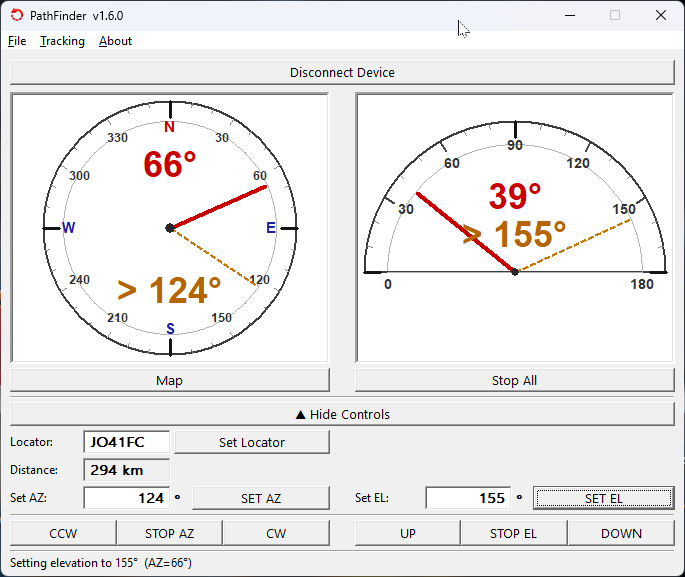
The PathFinder is a standalone Windows application for day-to-day rotator operation. It connects via Serial (COM port) or TCP (local or remote), shows live AZ and EL compass roses with a preset needle, and can automatically track stations via WSJT-X, JTDX or MSHV.

  • ✓
    Live AZ + EL compass roses — red needle shows live position; orange dashed needle shows the last preset target (> X° or > --- at startup).
  • ✓
    Serial, TCP Server & TCP Client — connect via COM port, act as TCP Server for the Android app and other software, or connect as TCP Client to a remote PathFinder; optional password and auto-connect.
  • ✓
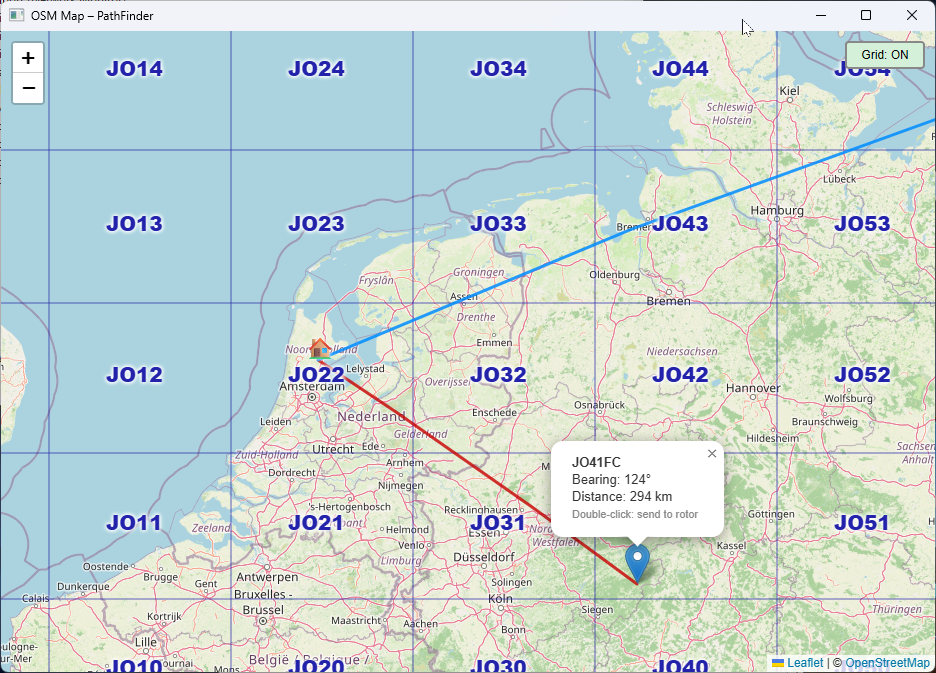
    OSM Map with Maidenhead grid — interactive map with Grid ON/OFF overlay; click a grid square for bearing & distance, double-click to point the antenna.
  • ✓
    WSJT-X / JTDX / MSHV tracking — reads the status file and automatically points the antenna whenever a new grid locator appears.
PathFinder main window
Main window — live AZ / EL compass roses and manual controls
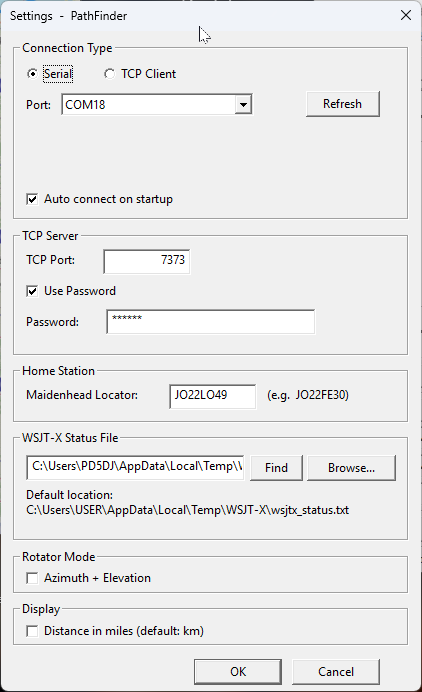
PathFinder settings — Serial mode
Settings (Serial) — select COM port, Maidenhead locator, WSJT-X status file and rotator mode.
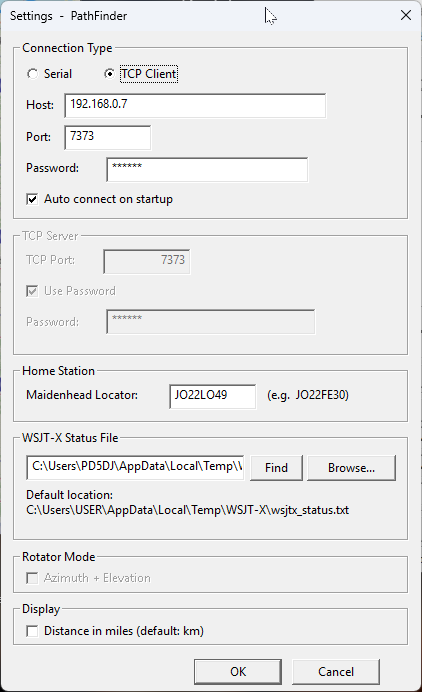
PathFinder settings — TCP Client mode
Settings (TCP Client) — connect as TCP Client to a remote PathFinder at any host:port with optional password.
PathFinder OSM Map with Maidenhead grid
OSM Map — Maidenhead grid overlay; click a grid square for bearing & distance, double-click to point the antenna directly.
Setup: Open File → Settings, choose Serial (select COM port) or TCP Client (enter host and port), and enter your Maidenhead locator. To enable WSJT-X / JTDX / MSHV tracking, browse to the wsjtx_status.txt file — typically found in C:\Users\USER\AppData\Local\Temp\WSJT-X\.

📱 PathFinder Android Client

Control your rotator from your smartphone or tablet — over Wi-Fi at home or remotely via the internet.

The PathFinder Android Client connects to the PathFinder Windows Client running on a PC via TCP (default port 7373). The PC acts as a bridge between the Android app and the hardware interface. The connection works both on the local network and remotely over the internet — with optional password protection for secure access.

  • ✓
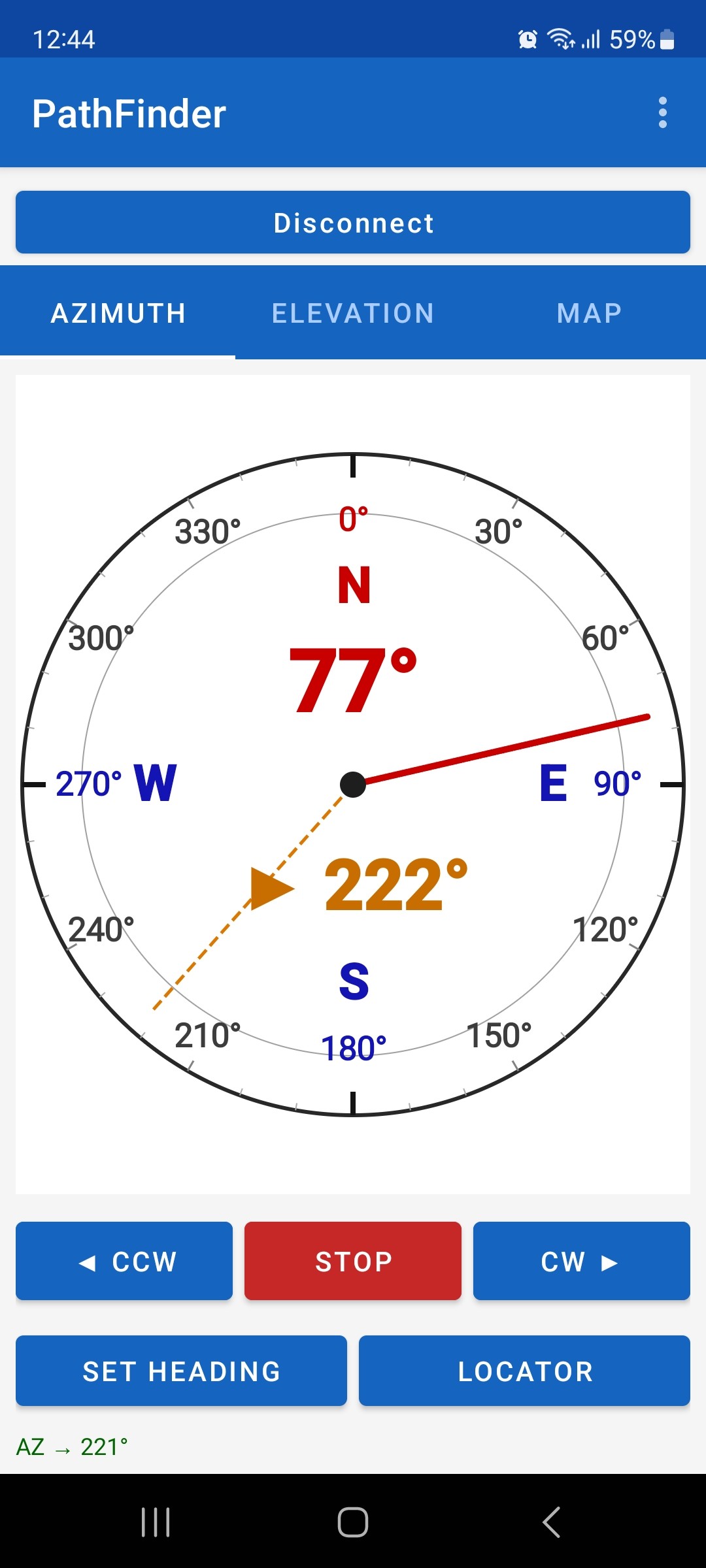
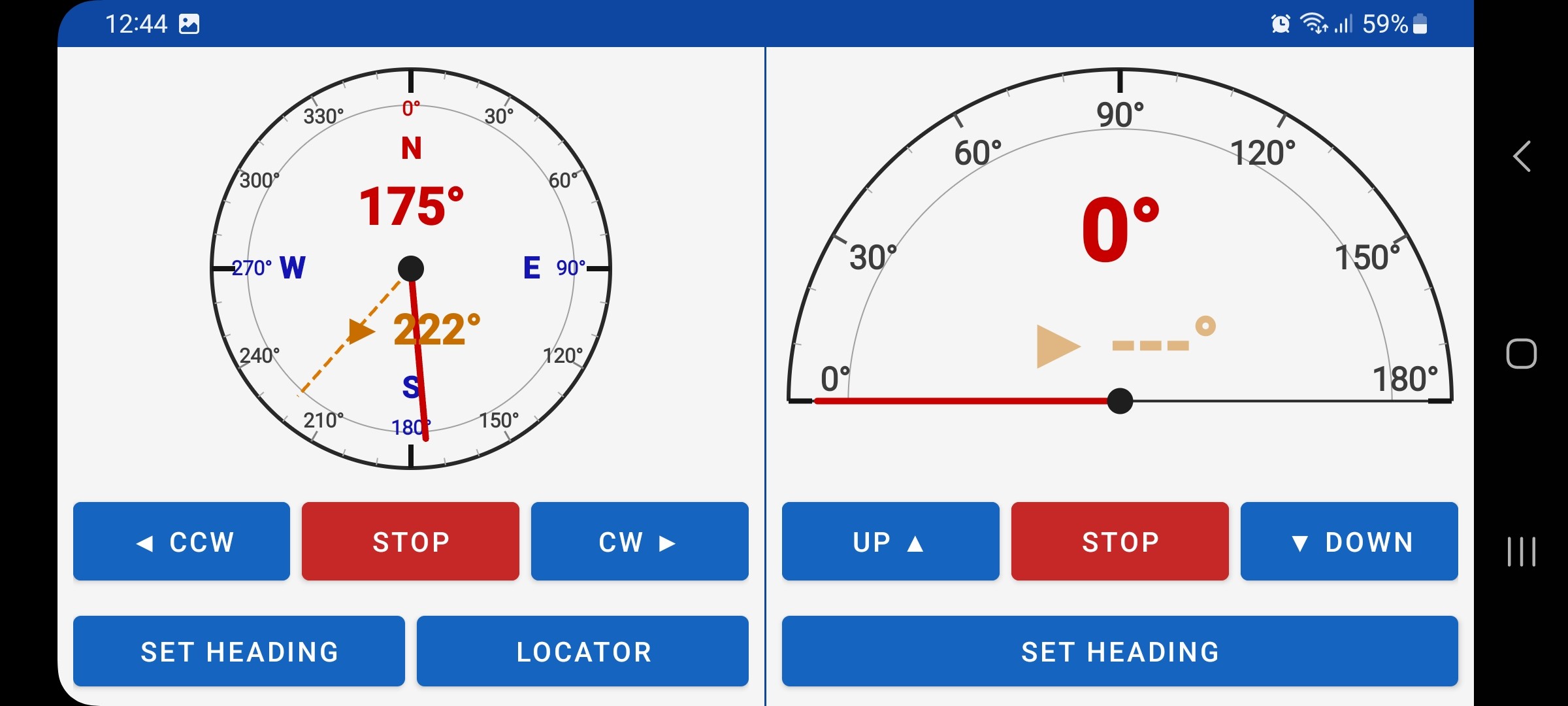
    Compass display — full 360° azimuth compass with live position (red needle) and target (orange needle).
  • ✓
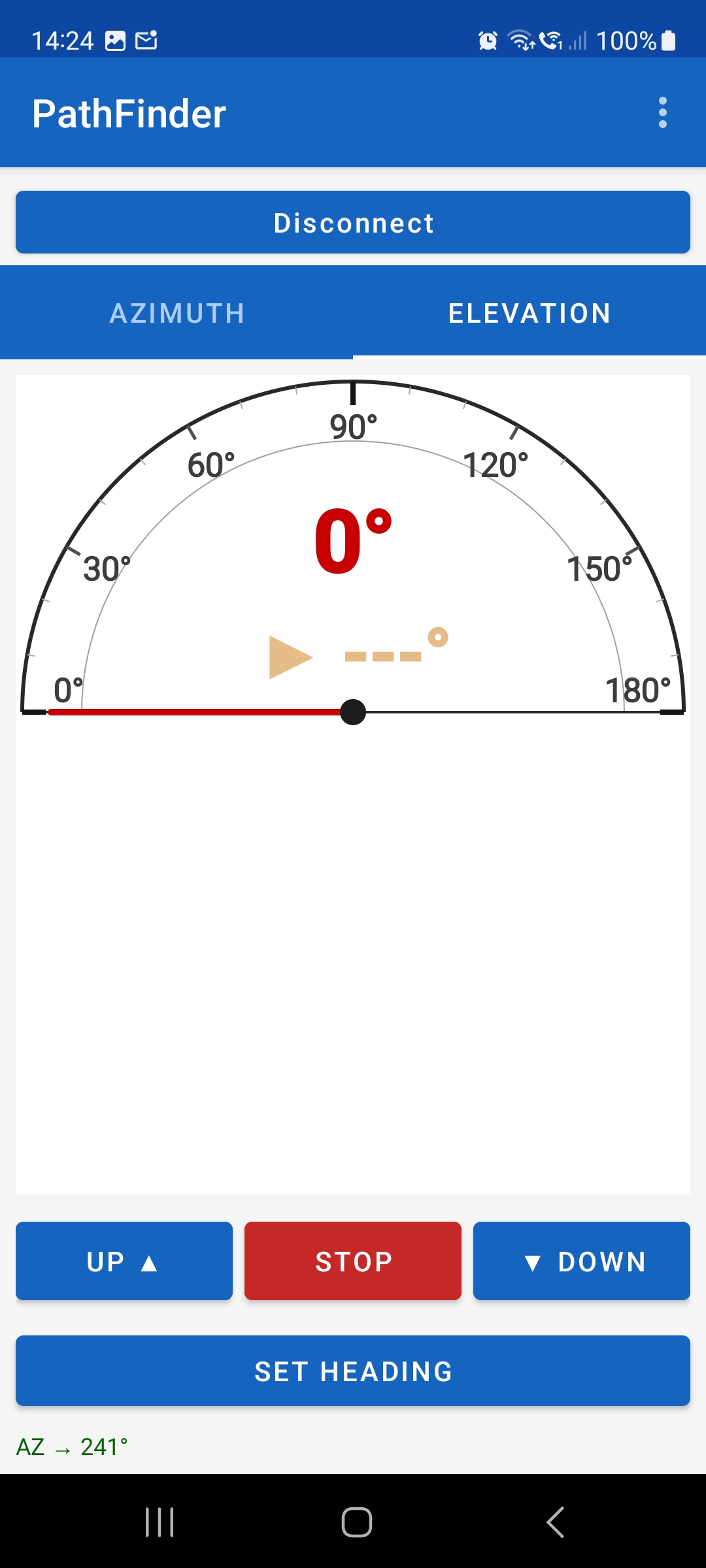
    Elevation gauge — semicircle 0°–180° with real-time position readout.
  • ✓
    Manual control — CCW / CW, UP / DOWN, STOP, and GO to a typed target angle.
  • ✓
    Locator bearing — enter a Maidenhead grid square to calculate and set the azimuth automatically.
  • ✓
    Local & remote — same LAN as the PC, or from anywhere via internet with port forwarding and password.
⬇ Download APK Android guide →
PathFinder Android — Azimuth
Azimuth tab — compass view
PathFinder Android — Elevation
Elevation tab — semicircle gauge
PathFinder Android — Landscape
Landscape — azimuth & elevation side by side
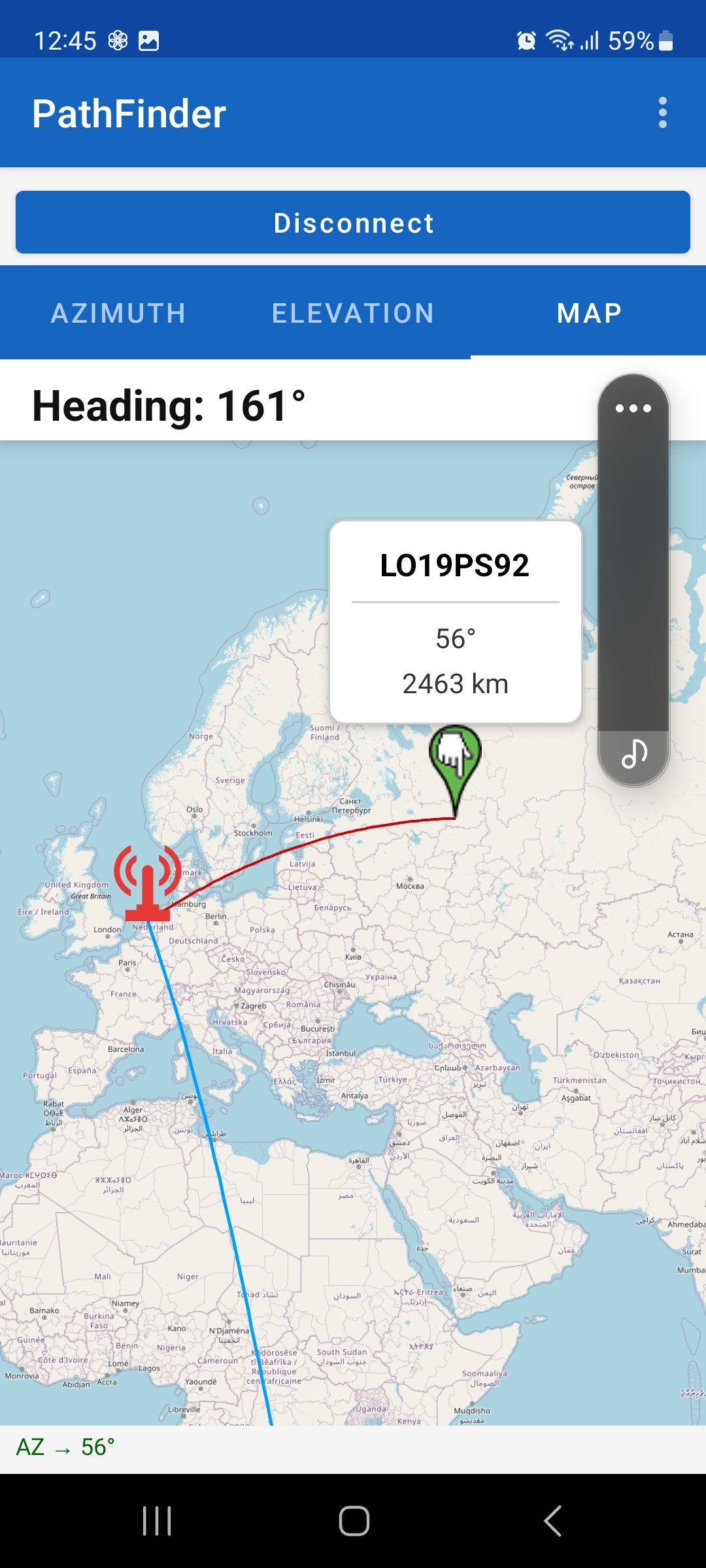
PathFinder Android — Map tab
Map tab — tap a location for bearing & distance
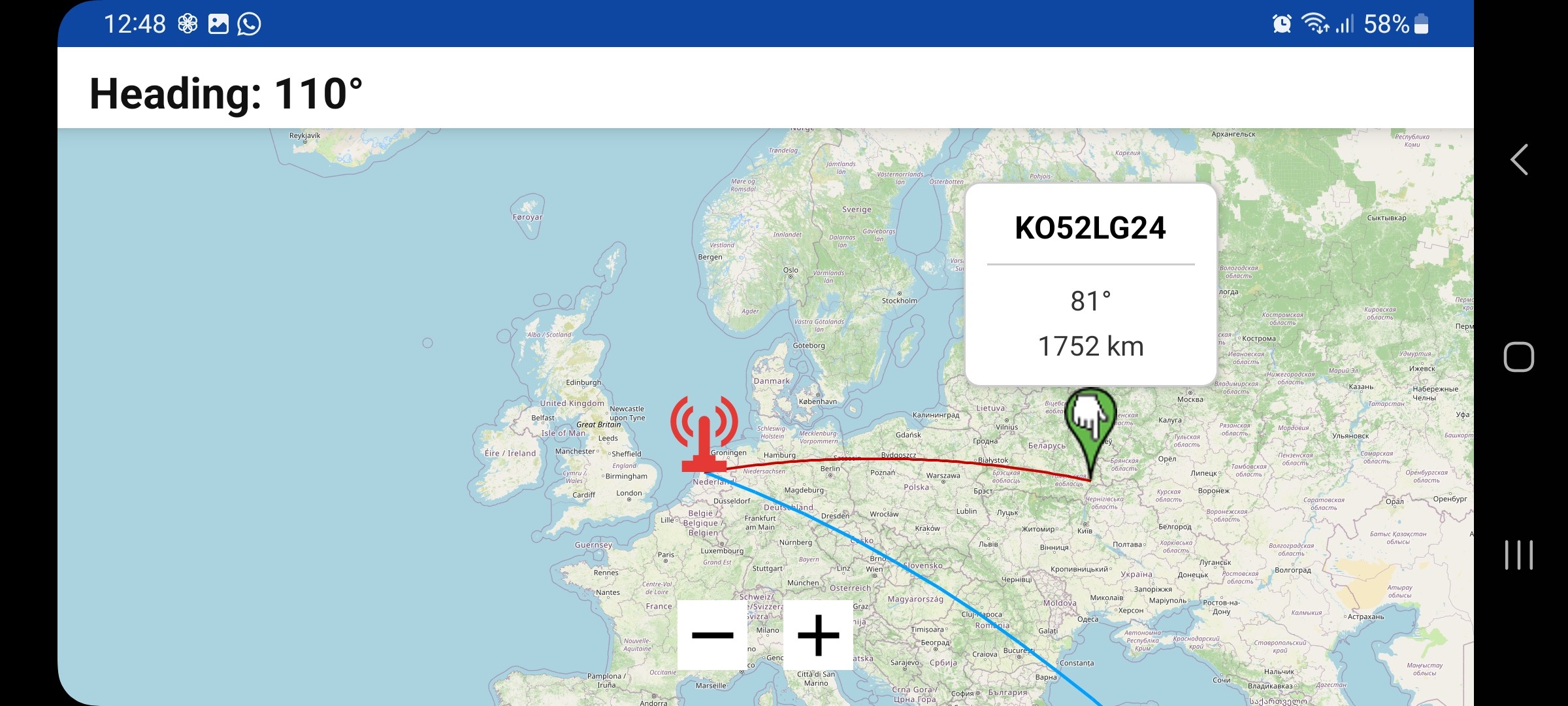
PathFinder Android — Map tab landscape
Map tab landscape — full-width great-circle view
Setup: Enable Android Remote in the Windows Client settings (File → Settings), set a TCP port (default 7373) and optionally a password. Then enter the PC's IP address and port in the Android app and tap Connect.

Guide

Choose your path — first-time setup, or reference for a specific function.

🔌
First time connecting
The complete setup workflow on one page — download, connect, tune and calibrate, in order.
Start the installation workflow →
📖
Explanation & parameters
Full reference for the Tool, Client and Android apps, all parameters, expert calibration and compatible software.
Open the reference & parameters →

Changelog

Overview of recent firmware and application changes.

2026-04-01 v2.0.1 FIXImproved SRAM stability by completely removing the String class from the firmware. All buffers are now static. Improved long-term reliability.
2026-03-15 v2.0.0 RELEASEVersion 2.0 — Commands are now case-insensitive. State machine optimised. PathFinder Windows application updated to v2.01 with firmware update wizard.
2025-12-10 v1.9.x ADDLive calibration via $CA1–$CA6 commands added. Calibrate directly from the PathFinder application without manual serial commands.
2025-09-20 v1.8.x ADDParameter API expanded. All parameters now configurable via the serial port. Python configuration tool added.
2025-06-01 v1.6.x ADDDAC speed control added (3-bit, 4 levels). Offset correction for azimuth and elevation. Elevation mode 0–180° available.
2025-02-14 v1.3.x ADDStall detection implemented. Hysteresis (2° dead zone) and direction-change delay (800 ms) added for relay protection.

Developer

Built by an amateur radio operator, for amateur radio operators.

BP

Björn Pasteuning

PA5DJ

PathFinder is a personal project developed to drive a DX rotor clock accurately and reliably from a computer. The interface combines a microcontroller-based hardware board with a professional Windows application and open firmware — fully user-updatable and calibratable.

🌐 ham4life.com 📖 Full Guide